Developers · Tutorial
Build a Visualforce PDF Template with Header, Footer, and Page Numbers
A practical Visualforce PDF template with repeated header and footer regions, page X of Y numbering, PNG static resources, controlled page breaks and Apex-based rendering.

Visualforce is still the most practical native option when a Salesforce project needs a fixed-layout PDF with repeated header and footer regions, predictable pagination, and no external rendering service. This example uses one Visualforce page, one Apex controller, and two PNG static resources that render cleanly inside the legacy PDF engine.
1. Rendered result
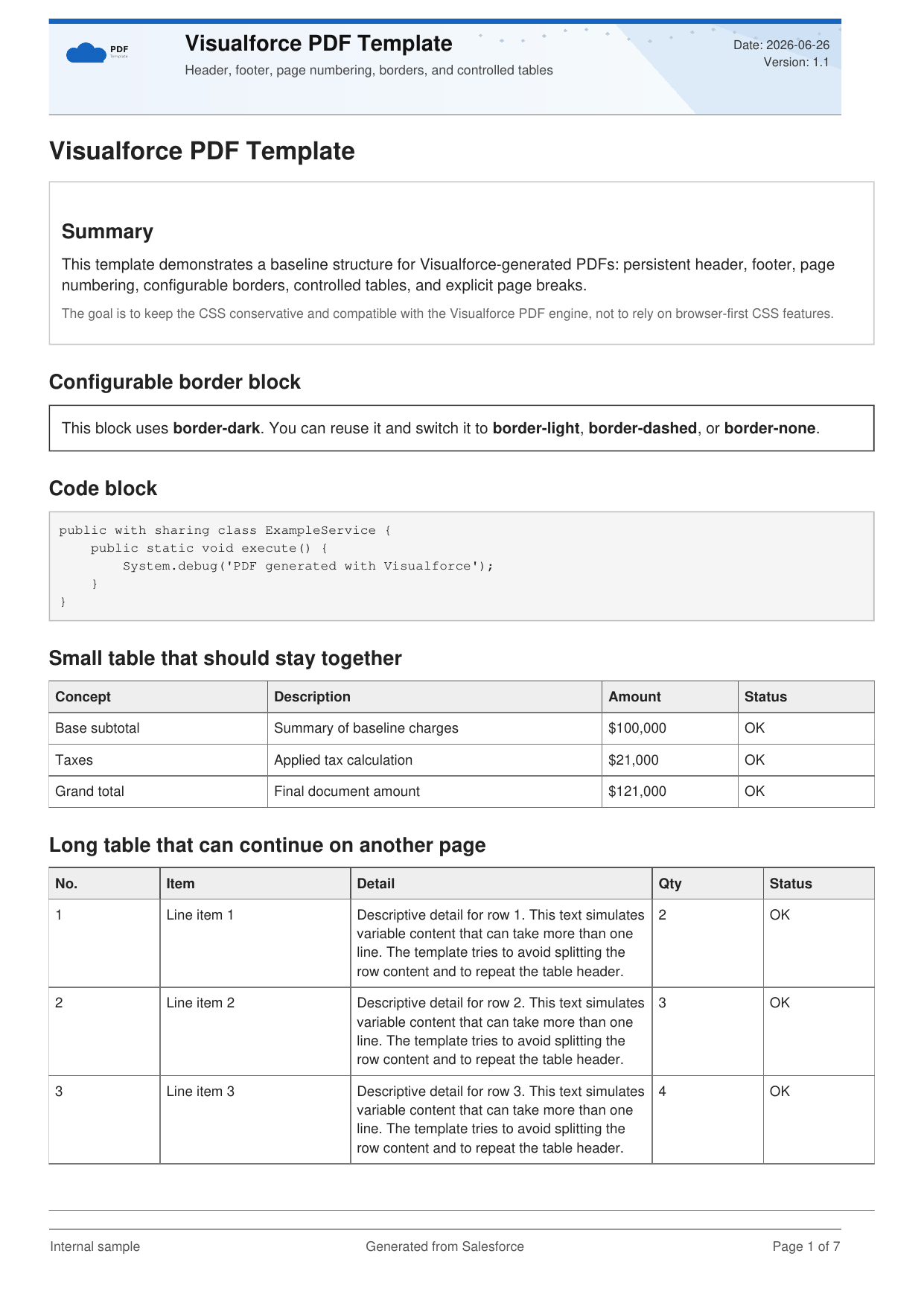
This article uses the real PDF generated from the org so the screenshots and the downloadable file reflect the exact template described below.
The last page proves that the explicit page break, the signatures block, and the footer counters survive until the end of the document.
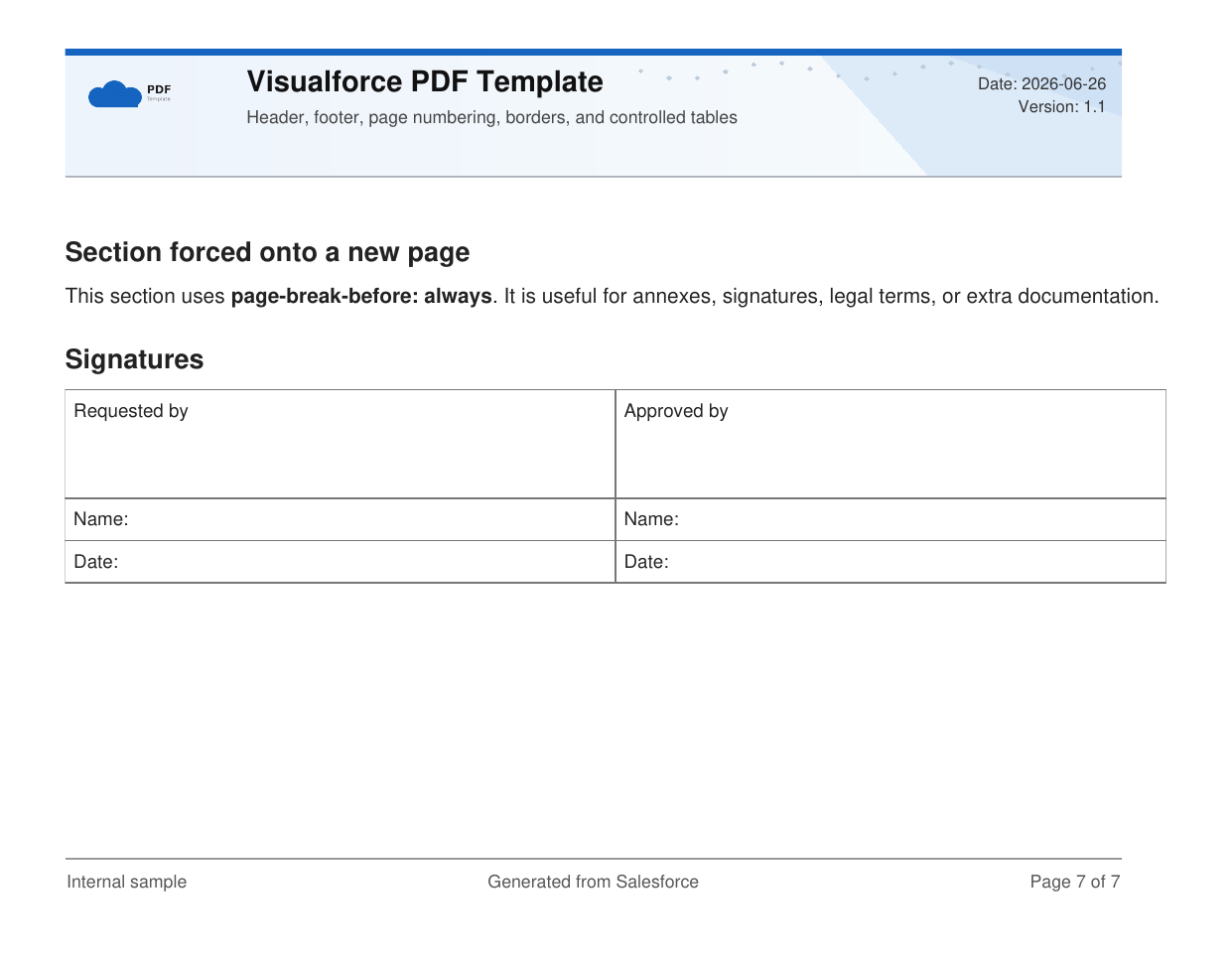
Page 7 of 7 footer.Download the rendered sample PDF
2. Upload the static resources first
The template depends on two image static resources. I deliberately kept them as PNG files because Visualforce PDF is far more predictable with simple raster assets than with SVGs, data URIs, modern font stacks, or browser-only CSS tricks.
| Static Resource | Used for | Why this choice is reliable |
|---|---|---|
PdfLogo |
Small brand mark in the running header | A lightweight PNG renders consistently in the PDF engine and keeps the header markup simple. |
PdfHeaderBackground |
Header banner image behind the title area | A flat PNG banner avoids the rendering surprises that are common with SVG filters, CSS gradients, or background-size edge cases. |

PdfHeaderBackground static resource used behind the running header.
After you upload the images in Setup → Static Resources, the page can reference them through URLFOR($Resource.PdfLogo) and URLFOR($Resource.PdfHeaderBackground).
3. Apex controller
The controller keeps the page dumb. It provides document metadata, sample rows for the small and long tables, and one helper that reduces the risk of long text spilling outside the printable area.
- The title, subtitle, version, and footer text are populated once in the constructor.
summaryRowsanddetailRowsare generated in Apex so the Visualforce markup stays declarative.formatIsoDate()avoids locale drift in the PDF preview by printing a stable ISO date.buildSafeDetailText()is the place to sanitize or reshape long content before the PDF engine tries to paginate it.
public with sharing class GenericPdfTemplateController {

    public String documentTitle { get; private set; }
    public String documentSubtitle { get; private set; }
    public String generatedDateText { get; private set; }
    public String templateVersion { get; private set; }
    public String footerLeftText { get; private set; }

    public List<PdfRow> summaryRows { get; private set; }
    public List<PdfRow> detailRows { get; private set; }

    public GenericPdfTemplateController() {
        documentTitle = 'Visualforce PDF Template';
        documentSubtitle = 'Header, footer, page numbering, borders, and controlled tables';
        generatedDateText = formatIsoDate(Date.today());
        templateVersion = '1.1';
        footerLeftText = 'Internal sample';

        summaryRows = buildSummaryRows();
        detailRows = buildDetailRows();
    }

    private static List<PdfRow> buildSummaryRows() {
        List<PdfRow> rows = new List<PdfRow>();

        rows.add(new PdfRow('1', 'Base subtotal', 'Summary of baseline charges', '$100,000', 'OK', '1'));
        rows.add(new PdfRow('2', 'Taxes', 'Applied tax calculation', '$21,000', 'OK', '1'));
        rows.add(new PdfRow('3', 'Grand total', 'Final document amount', '$121,000', 'OK', '1'));

        return rows;
    }

    private static List<PdfRow> buildDetailRows() {
        List<PdfRow> rows = new List<PdfRow>();

        for (Integer i = 1; i <= 45; i++) {
            rows.add(new PdfRow(
                String.valueOf(i),
                'Line item ' + i,
                buildSafeDetailText(i),
                '$' + String.valueOf(i * 1250),
                i == 7 ? 'Review' : 'OK',
                String.valueOf(1 + Math.mod(i, 5))
            ));
        }

        return rows;
    }

    /*
        Extremely long tokens without spaces can overflow the page in
        Visualforce PDFs. It is usually safer to control wrapping from Apex
        rather than relying on modern CSS properties.
    */
    private static String buildSafeDetailText(Integer indexValue) {
        String baseText = 'Descriptive detail for row ' + indexValue +
            '. This text simulates variable content that can take more than one line. ' +
            'The template tries to avoid splitting the row content and to repeat the table header.';

        if (Math.mod(indexValue, 8) == 0) {
            baseText += ' An extra note is included here to test variable row height.';
        }

        return baseText;
    }

    private static String formatIsoDate(Date value) {
        return String.valueOf(value.year()) +
            '-' +
            twoDigits(value.month()) +
            '-' +
            twoDigits(value.day());
    }

    private static String twoDigits(Integer value) {
        return value < 10 ? '0' + String.valueOf(value) : String.valueOf(value);
    }

    public class PdfRow {
        public String numberText { get; private set; }
        public String concept { get; private set; }
        public String name { get; private set; }
        public String description { get; private set; }
        public String detail { get; private set; }
        public String amountText { get; private set; }
        public String status { get; private set; }
        public String quantityText { get; private set; }

        public PdfRow(
            String numberText,
            String name,
            String detail,
            String amountText,
            String status,
            String quantityText
        ) {
            this.numberText = numberText;
            this.concept = name;
            this.name = name;
            this.description = detail;
            this.detail = detail;
            this.amountText = amountText;
            this.status = status;
            this.quantityText = quantityText;
        }
    }
}
4. Page shell, header, footer, and page counters
The PDF-specific setup starts in the page attributes and in the @page block. The margins reserve physical space for the running regions, and content: element(...) tells Visualforce which DOM fragments must be repeated on every page.
<apex:page controller="GenericPdfTemplateController"
    renderAs="pdf"
    showHeader="false"
    sidebar="false"
    standardStylesheets="false"
    applyBodyTag="false"
    applyHtmlTag="false"
    cache="false">

<html>
<head>
    <meta http-equiv="Content-Type" content="text/html;charset=UTF-8" />

    <style type="text/css">
        @page {
            size: A4 portrait;

            margin-top: 115px;
            margin-right: 42px;
            margin-bottom: 82px;
            margin-left: 42px;

            @top-left {
                content: element(pageHeader);
            }

            @bottom-left {
                content: element(pageFooter);
            }
        }

        html,
        body {
            margin: 0;
            padding: 0;
            font-family: Arial, Helvetica, sans-serif;
            font-size: 10pt;
            color: #222222;
            line-height: 1.35;
        }

        .page-header {
            position: running(pageHeader);
            width: 511pt;
            height: 82px;
            overflow: hidden;
        }

        .header-shell {
            position: relative;
            width: 511pt;
            height: 82px;
            overflow: hidden;
            border-bottom: 1px solid #bbbbbb;
            background-color: #eef3f8;
        }

        .header-background {
            position: absolute;
            top: 0;
            left: 0;
            width: 511pt;
            height: 82px;
            overflow: hidden;
        }

        .header-background img {
            width: 511pt;
            height: 82px;
        }

        .header-table {
            position: relative;
            z-index: 2;
            width: 511pt;
            height: 82px;
            border-collapse: collapse;
            table-layout: fixed;
            background-color: transparent;
        }

        .header-left {
            width: 85px;
            padding: 8px 10px;
            vertical-align: middle;
        }

        .header-logo {
            width: 70px;
            height: auto;
        }

        .header-main {
            padding: 8px 12px;
            vertical-align: middle;
        }

        .header-title {
            font-size: 14pt;
            font-weight: bold;
            color: #111111;
            margin: 0;
            padding: 0;
        }

        .header-subtitle {
            font-size: 8.5pt;
            color: #444444;
            margin-top: 3px;
        }

        .header-meta {
            width: 125px;
            padding: 8px 10px;
            vertical-align: middle;
            text-align: right;
            font-size: 8pt;
            color: #333333;
        }

        .page-footer {
            position: running(pageFooter);
            width: 511pt;
            height: 44px;
            font-size: 8.5pt;
            color: #555555;
            border-top: 1px solid #999999;
            padding-top: 6px;
        }

        .footer-table {
            width: 511pt;
            border-collapse: collapse;
            table-layout: fixed;
        }

        .footer-left {
            text-align: left;
            width: 33%;
        }

        .footer-center {
            text-align: center;
            width: 34%;
        }

        .footer-right {
            text-align: right;
            width: 33%;
        }

        .page-number:before {
            content: counter(page);
        }

        .page-count:before {
            content: counter(pages);
        }
The repeated header itself uses both static resources. The background banner stays behind the table content, while the logo remains a normal image node inside the left column.
5. Border control, tables, and explicit page breaks
The next layer is the conservative CSS that tells the PDF engine how to treat borders, rows, and page breaks. When working with Visualforce PDF I avoid flexbox, grid, sticky positioning, and browser-first overflow helpers. Fixed table layouts and old-school page-break-* rules are still the safe baseline.
        .box {
            padding: 10px;
            margin: 0 0 12px 0;
        }

        .border-none {
            border: none;
        }

        .border-light {
            border: 1px solid #cccccc;
        }

        .border-dark {
            border: 1px solid #333333;
        }

        .border-dashed {
            border: 1px dashed #777777;
        }

        .section {
            margin-bottom: 14px;
        }

        /*
            Visualforce PDF still behaves more reliably with
            page-break-inside: avoid than with newer CSS equivalents.
        */
        .avoid-break {
            page-break-inside: avoid;
        }

        .page-break-before {
            page-break-before: always;
        }

        .page-break-after {
            page-break-after: always;
        }

        table.data-table {
            width: 100%;
            border-collapse: collapse;
            table-layout: fixed;
            margin: 8px 0 14px 0;
            font-size: 9pt;
        }

        .data-table th {
            border: 1px solid #555555;
            padding: 5px;
            font-weight: bold;
            text-align: left;
            vertical-align: top;
            background-color: #eeeeee;
        }

        .data-table td {
            border: 1px solid #777777;
            padding: 5px;
            vertical-align: top;
        }

        .data-table thead {
            display: table-header-group;
        }

        .data-table tfoot {
            display: table-footer-group;
        }

        .data-table tr {
            page-break-inside: avoid;
        }

        .table-keep-together {
            page-break-inside: avoid;
        }

        .table-can-split {
            page-break-inside: auto;
        }

        .col-small {
            width: 14%;
        }

        .col-medium {
            width: 24%;
        }

        .col-large {
            width: 38%;
        }

        .pre-line {
            white-space: pre-line;
        }

        .code-block {
            font-family: "Courier New", Courier, monospace;
            font-size: 8.5pt;
            border: 1px solid #bbbbbb;
            padding: 8px;
            margin: 8px 0 12px 0;
            background-color: #f5f5f5;
            white-space: pre-wrap;
<div class="section">
<h2>Small table that should stay together</h2>
<div class="table-keep-together">
<table class="data-table">
<thead>
<tr>
<th class="col-medium">Concept</th>
<th class="col-large">Description</th>
<th class="col-small">Amount</th>
<th class="col-small">Status</th>
</tr>
</thead>
<tbody>
<apex:repeat value="{!summaryRows}" var="row">
<tr>
<td>{!row.concept}</td>
<td>{!row.description}</td>
<td>{!row.amountText}</td>
<td>{!row.status}</td>
</tr>
</apex:repeat>
</tbody>
</table>
</div>
</div>
<div class="section">
<h2>Long table that can continue on another page</h2>
<table class="data-table table-can-split">
<thead>
<tr>
<th class="col-small">No.</th>
<th class="col-medium">Item</th>
<th class="col-large">Detail</th>
<th class="col-small">Qty</th>
<th class="col-small">Status</th>
</tr>
</thead>
<tbody>
<apex:repeat value="{!detailRows}" var="row">
<tr>
<td>{!row.numberText}</td>
<td>{!row.name}</td>
<td>{!row.detail}</td>
<td>{!row.quantityText}</td>
<td>{!row.status}</td>
</tr>
</apex:repeat>
</tbody>
</table>
</div>
<div class="page-break-before"></div>
<div class="section avoid-break">
<h2>Section forced onto a new page</h2>
<p>
This section uses <strong>page-break-before: always</strong>.
It is useful for annexes, signatures, legal terms, or extra documentation.
</p>
</div>
<div class="section avoid-break">
<h2>Signatures</h2>
<table class="data-table">
<tbody>
<tr>
<td style="height: 70px;">Requested by</td>
<td style="height: 70px;">Approved by</td>
</tr>
<tr>
<td>Name:</td>
<td>Name:</td>
</tr>
<tr>
<td>Date:</td>
<td>Date:</td>
</tr>
</tbody>The two table modes intentionally solve different problems:
table-keep-togetheris useful for summaries, signers, totals, or compact legal blocks that should move as a whole.table-can-splitis for long datasets where continuing on the next page is acceptable as long as the header repeats and rows are not cut arbitrarily.
6. Render the page as a PDF from Apex
If you need an actual file artifact, do not try to scrape the browser session. Render the PageReference directly from Apex and persist the blob.
PageReference pdfPage = Page.GenericPdfTemplate;
Blob pdfBlob = pdfPage.getContentAsPDF();

ContentVersion version = new ContentVersion(
    Title = 'GenericPdfTemplateEnglishRender',
    PathOnClient = 'GenericPdfTemplateEnglishRender.pdf',
    VersionData = pdfBlob,
    IsMajorVersion = true
);

insert version;
That approach gives you a normal Salesforce file that can be queried, downloaded, attached to a business record, or passed into the next automation step.
Common Visualforce PDF constraints
- Reserve real space for header and footer regions through
@pagemargins, or your body content will eventually collide with them. - Prefer PNG or JPG static resources over SVG-heavy assets when the PDF must render consistently in every environment.
page-break-inside: avoidhelps, but it cannot keep a row together if that single row is taller than the printable page.- Repeated table headers require a real
theadanddisplay: table-header-group. - Long tokens such as URLs, hashes, or IDs should be normalized from Apex before they reach the PDF markup.
- When you need a downloadable artifact from the org itself, generate it through
PageReference.getContentAsPDF()rather than by mimicking the UI session.
Minimal checklist for the next project
- Upload the logo and header banner as static resources.
- Create a controller that owns all printable data and all formatting helpers.
- Define the running header and footer with
@pageandcontent: element(...). - Separate small tables that should stay together from long tables that can paginate normally.
- Use an explicit Apex render step when the PDF must be stored as a file or reused outside the preview tab.
- Render once after deployment and keep a real sample PDF for regression checks.